

Dedicated AI analytics platforms like Pecan AI, Narrative BI, and Obviously AI charge $200-500/month for AI-powered insights. Meanwhile, you’re sitting on a goldmine of data in Google Analytics 4 — and ChatGPT can analyze it for $0.
This isn’t hype. You can export your GA4 data as a CSV, upload it to ChatGPT, and ask plain-English questions like “which pages are losing traffic?” or “what’s my best-converting traffic source?” The AI will analyze your numbers, spot patterns, and even build charts — all without writing a single line of code.
Here’s exactly how to do it, step by step.
What You’ll Need (and What It Costs)
The entire workflow requires just two free tools:
- Google Analytics 4 — Free. You already have this.
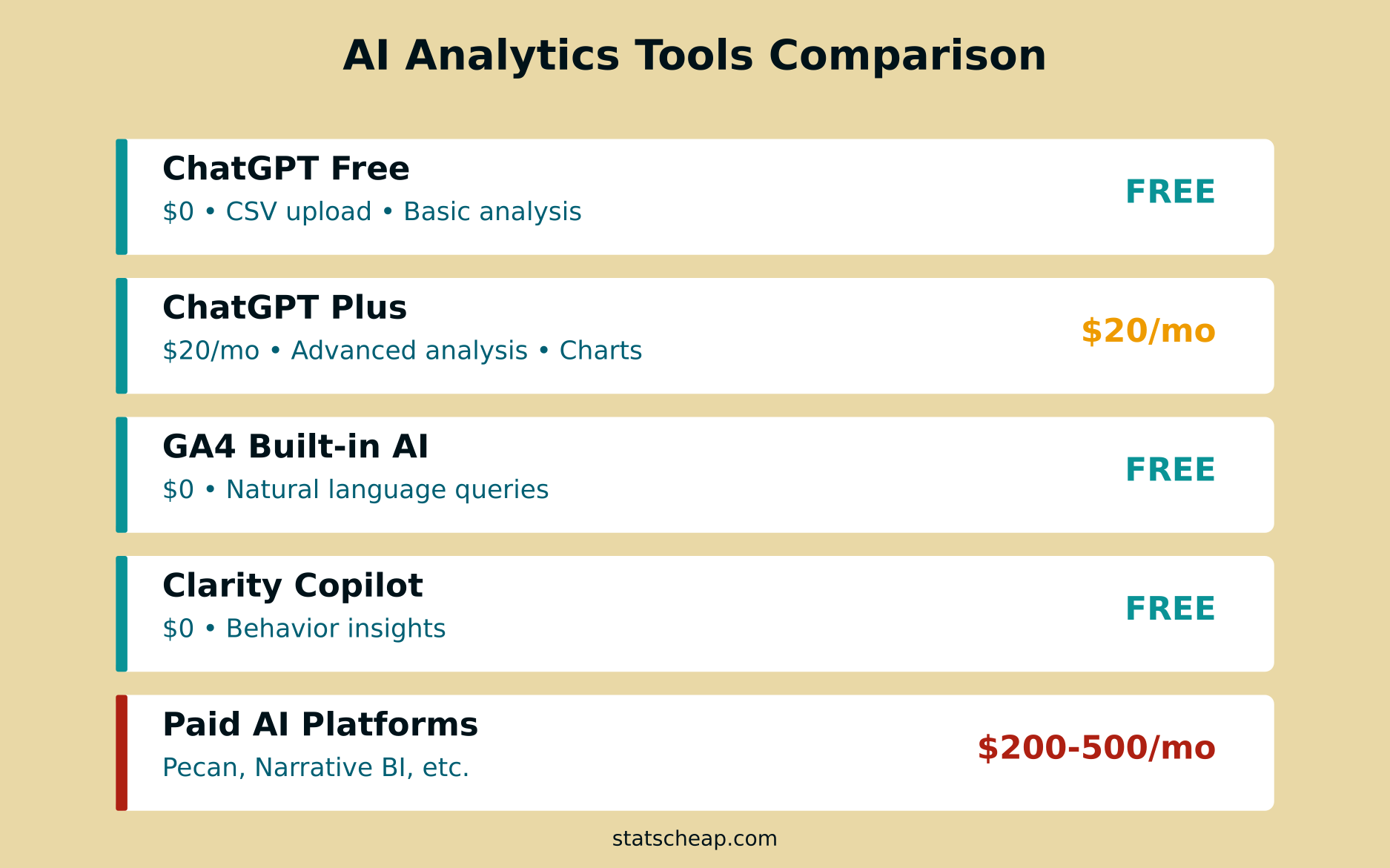
- ChatGPT — Free tier works for basic analysis, though it’s limited to 10 messages every 5 hours. ChatGPT Go at $8/month lifts that cap significantly and adds file uploads. ChatGPT Plus at $20/month unlocks Advanced Data Analysis with charts and deeper processing, but it’s optional.
That’s it. No plugins, no APIs, no third-party connectors. Just export, upload, ask.
Step 1: Export Your GA4 Data
Before ChatGPT can analyze anything, you need to get your data out of GA4. There are four ways to do this, ranked from easiest to most powerful.
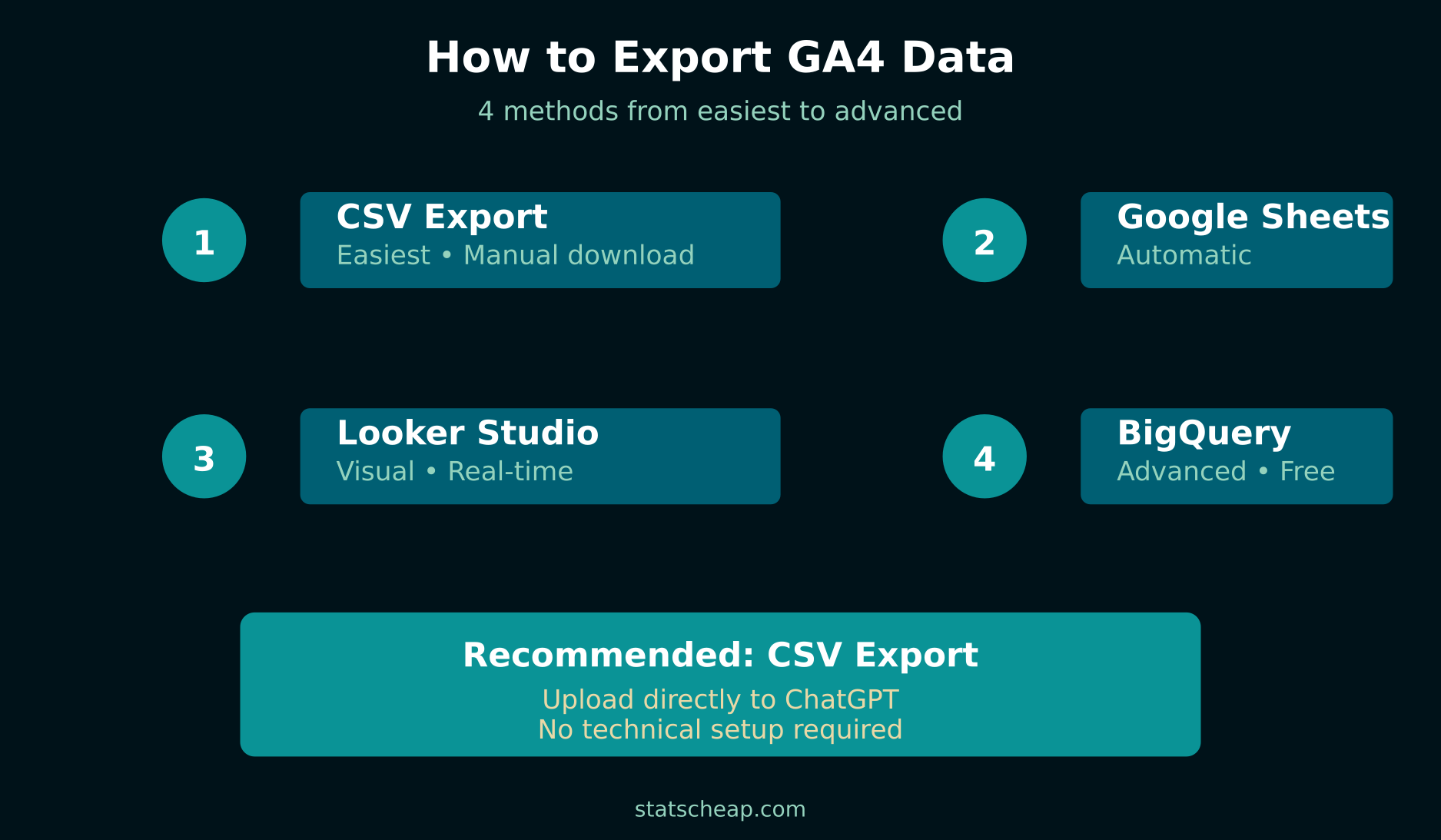
Method 1: CSV Export (Easiest — 30 Seconds)
Open any GA4 report. Click the share icon (top right) and select “Download file” → CSV. That’s it. You’ll get a spreadsheet with whatever data you’re looking at — pages, traffic sources, user demographics, events, conversions.
Best for: Quick, one-time analysis. Grab a specific report and ask ChatGPT about it.
Method 2: Google Sheets Export (Free, Automatic)
Instead of CSV, choose “Download file” → Google Sheets. Your data opens directly in a Google Sheet that you can update, combine with other data, and keep for reference. You can also use the free Google Analytics Spreadsheet Add-on to pull data automatically on a schedule.
Best for: Ongoing analysis. Set it up once, refresh the data monthly, and keep asking ChatGPT new questions about updated numbers.
Method 3: Explorations (More Data, Custom Reports)
GA4’s Explorations tab lets you build custom reports with exactly the dimensions and metrics you want. Create a Free Form exploration, add your columns, then export as CSV. This gives you more granular data than standard reports — and you can combine multiple dimensions (page + source + device type) in a single export.
Best for: Targeted analysis. When you know exactly what question you want AI to answer.
Method 4: BigQuery Export (Advanced, Free Tier)
GA4 can automatically export raw event data to Google BigQuery. BigQuery’s free tier includes 10 GB storage and 1 TB of queries per month — more than enough for most small business sites. GA4’s batch export handles up to 1 million events per day (plenty for small sites). One caveat: BigQuery’s free sandbox tier expires tables after 60 days, so export your query results promptly. Once in BigQuery, export query results as CSV and feed them to ChatGPT. This is the most powerful option because you get event-level data, not just aggregated reports.
Best for: Power users who want to analyze individual user journeys, custom event sequences, or data that standard GA4 reports don’t show.
Step 2: Upload to ChatGPT and Ask Questions
Here’s where the magic happens. Go to chat.openai.com, click the paperclip icon to attach your CSV file, and start asking questions in plain English.
ChatGPT will read your spreadsheet, understand the columns and data types, and respond with analysis. On the free tier, you get text-based analysis — but note the 10 messages per 5 hours limit, which means you’ll want to make each prompt count. ChatGPT Go ($8/month) removes most of those limits and adds reliable file uploads. ChatGPT Plus ($20/month) also unlocks Advanced Data Analysis (formerly Code Interpreter) — which can create charts, run statistical calculations, and process larger datasets.
Here are the most useful prompts to start with:
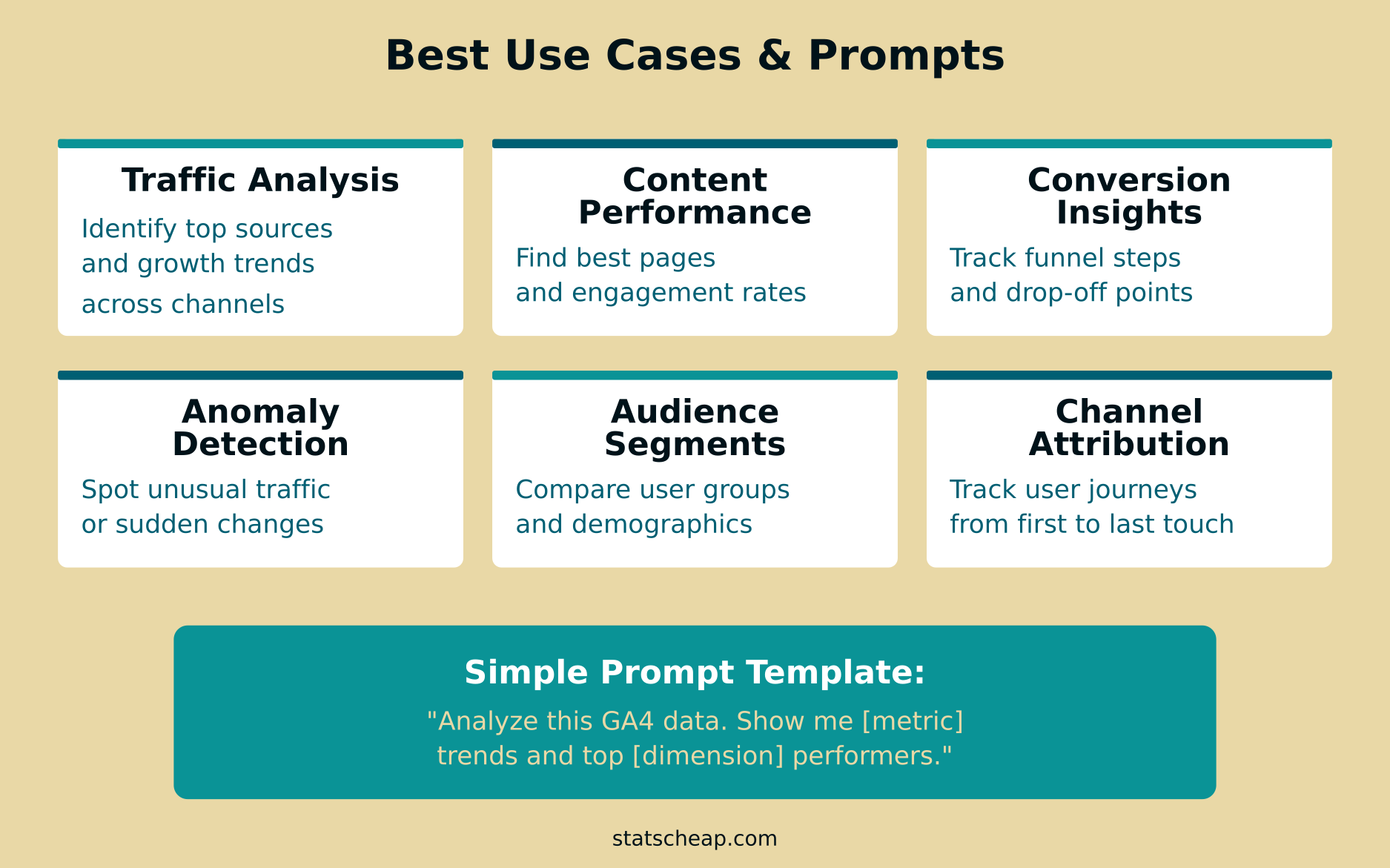
Traffic Analysis Prompts
- “Analyze this GA4 data and tell me the top 10 pages by traffic. Which ones are growing, which are declining?”
- “Compare this month’s traffic to last month. What are the biggest changes and why might they have happened?”
- “Which traffic sources are sending the most engaged users (lowest bounce rate, highest session duration)?”
Content Performance Prompts
- “Which blog posts have the highest engagement rate but lowest traffic? These might be underpromotion opportunities.”
- “Rank my content by engagement rate and identify patterns — do certain topics or formats perform better?”
- “Find pages with high traffic but low engagement. What do they have in common?”
Conversion and Revenue Prompts
- “What’s my conversion rate by traffic source? Which channels deliver the most conversions per visit?”
- “Identify my highest-converting landing pages and explain what might make them effective.”
- “Calculate the estimated value of each traffic source based on conversion rates and average order value.”
Anomaly Detection Prompts
- “Look for unusual patterns or anomalies in this data. Are there sudden drops or spikes I should investigate?”
- “Compare weekday vs weekend traffic patterns. Is there anything surprising?”
- “Are there any pages that suddenly lost significant traffic? Flag potential SEO issues.”
Step 3: Get Charts and Visualizations (Plus Only)
If you’re on ChatGPT Plus ($20/month), you can ask for visual output. Try prompts like:
- “Create a bar chart of my top 10 traffic sources by sessions.”
- “Plot my daily traffic over the past 30 days and add a trend line.”
- “Build a pie chart showing traffic distribution by device type.”
- “Create a heatmap showing which days of the week and hours get the most traffic.”
ChatGPT’s Advanced Data Analysis runs Python code behind the scenes to generate publication-quality charts. You can download them as images for reports or presentations. It’s essentially a free data analyst — one that never complains about last-minute report requests.
The free tier can still describe patterns and trends in text form — you just won’t get the visual charts. For many small businesses, the text analysis alone is incredibly valuable.
What GA4’s Built-in AI Already Does (Free)
Before you export anything, check what GA4 can tell you natively. Google has been steadily adding AI features to GA4, and in 2026, the built-in intelligence is genuinely useful.
Analytics Intelligence: Click the search bar at the top of any GA4 screen and type a question in plain English. Try “What were my top pages last week?” or “How did organic traffic change this month?” GA4 will generate answers with relevant data cards. It’s not as flexible as ChatGPT, but it’s instant and requires zero data export.
Automated Insights: GA4 automatically surfaces anomalies and trends in the Insights section of your Home screen. It detects sudden traffic spikes, drops in conversion rates, and changes in user behavior — all without you asking. These insights have gotten significantly better in 2026 with Google’s AI improvements.
Predictive Metrics: GA4 can predict purchase probability, churn probability, and predicted revenue for user segments — completely free. You’ll find these under Explore → User Lifetime and in the Audiences builder. These predictive features used to require expensive dedicated tools.
The bottom line: Use GA4’s built-in AI for quick, day-to-day questions. Export to ChatGPT when you need deeper analysis, custom visualizations, or answers to complex multi-dimensional questions that GA4’s search bar can’t handle.
Other Free AI Options Beyond ChatGPT
ChatGPT isn’t the only free AI that can analyze your analytics data. Here are other solid options:
Claude (Anthropic): Claude can analyze CSV files on its free tier and excels at thorough, nuanced analysis. It’s particularly good at identifying patterns and explaining why trends might be happening, not just what the numbers show. It supports file uploads and provides detailed written analysis. A strong alternative if you prefer a different AI perspective.
Google Gemini: Gemini has a natural advantage for Google Analytics data since it’s part of the Google ecosystem. You can connect Gemini to Google Sheets and ask questions about your analytics data directly. The free tier handles most analysis needs, and the integration with Google Workspace makes it seamless.
Microsoft Copilot: If you export GA4 data to Excel, Microsoft Copilot (included with Microsoft 365) can analyze it directly within the spreadsheet. It generates formulas, creates pivot tables, and builds charts — all from natural language prompts. If you already pay for Microsoft 365, this adds zero extra cost.
Microsoft Clarity Copilot: While not for GA4 data specifically, Clarity’s free AI Copilot answers questions about user behavior — “Which pages have the most rage clicks?” or “Where do users drop off?” It complements GA4 analysis by adding behavioral context that traffic numbers alone can’t provide.
Google Looker Studio: While not AI-powered in the traditional sense, Looker Studio connects directly to GA4 and builds interactive dashboards for free. Combined with an AI tool for interpretation, it’s a powerful zero-cost combo.
What AI Analytics Can’t Do (Important Caveats)
AI is powerful, but it’s not magic. Before you cancel your analytics subscriptions, understand these limitations:
It can hallucinate numbers. ChatGPT occasionally generates plausible-sounding but incorrect calculations. Always sanity-check key figures against your GA4 dashboard. If ChatGPT says your traffic grew 47%, verify it. The AI is excellent at spotting patterns but can make arithmetic errors.
It doesn’t have real-time access. Unlike GA4’s built-in AI, ChatGPT only knows what you upload. If your CSV is from last month, it can’t tell you what happened yesterday. You need to export fresh data for each analysis session.
Privacy matters. When you upload GA4 data to ChatGPT, that data is processed on OpenAI’s servers. Standard GA4 exports contain aggregated data (page views, session counts) — not personally identifiable information. But if your BigQuery export includes user IDs or custom dimensions with personal data, think twice before uploading. OpenAI’s data usage policies have improved, but caution is warranted with sensitive data.
It can’t replace domain knowledge. AI can tell you what happened in your data, but why it happened often requires context only you have. A traffic spike might be from a viral social post, a seasonal trend, or a Google algorithm update — ChatGPT won’t know which unless you tell it. The best approach: let AI surface the patterns, then apply your business knowledge to interpret them.
Complex attribution is still hard. Multi-touch attribution modeling requires sophisticated data pipelines that go beyond CSV uploads. For basic “which channel drives conversions” questions, ChatGPT is fine. For “what’s the true ROI of each touchpoint in a 7-step customer journey” — you’ll need more specialized tools.
The Cost Comparison: AI Analytics on Any Budget
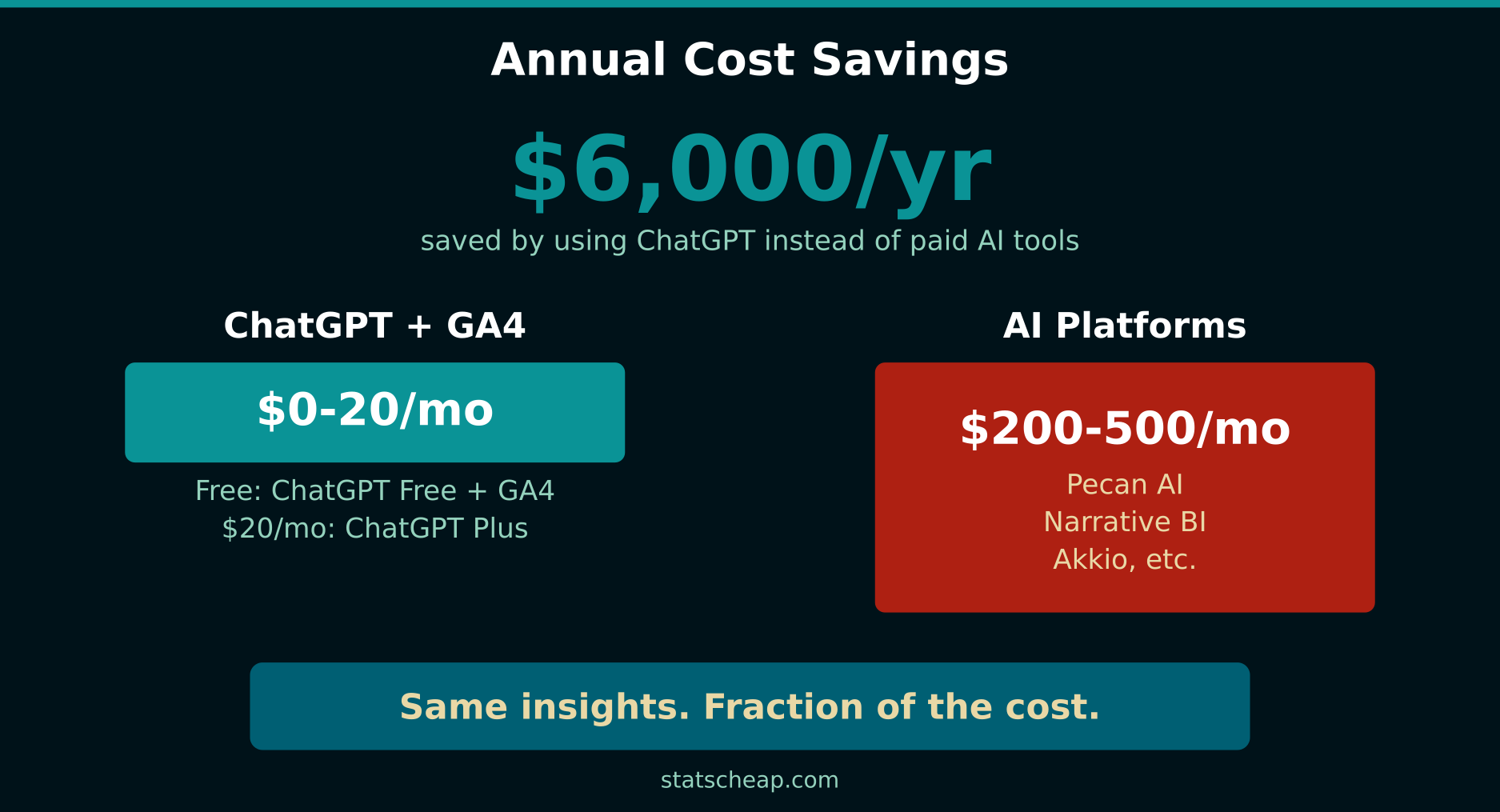
Here’s what you’d pay for AI-powered analytics at each level:
- The $0 stack: GA4 built-in AI + ChatGPT free tier + Clarity Copilot — handles 80% of small business analytics needs (just mind the 10-message cap on free ChatGPT)
- The $8/month stack: Everything above + ChatGPT Go for reliable file uploads and higher message limits — the sweet spot for most users
- The $20/month stack: Everything above + ChatGPT Plus for charts and advanced analysis — covers 95% of needs
- Dedicated AI tools: Narrative BI ($200/month), Pecan AI ($300+/month), Obviously AI ($250+/month) — enterprise features most small businesses don’t need
Let’s do the math. The $0 stack costs $0/year. The Go stack costs $96/year. The Plus stack costs $240/year. A mid-tier dedicated platform costs $2,400-6,000/year. And honestly? For most StatsCheap readers, the Go stack at $8/month is the sweet spot — reliable uploads and enough messages for weekly analysis without overpaying.
A Practical Weekly Workflow
Here’s how to actually integrate AI analytics into your routine without it becoming another abandoned tool:
Monday morning (10 minutes): Export the past week’s GA4 data as CSV. Upload to ChatGPT. Ask: “Summarize this week’s performance compared to the previous week. What improved? What declined? Anything unusual?” You’ll get a quick health check of your site — the kind of executive summary that agencies charge hundreds to produce.
Monthly deep dive (30 minutes): Export a full month of GA4 data across multiple reports (traffic, content, conversions, acquisition). Upload all files and ask: “Analyze these reports together. What are the three most important insights I should act on this month?” Follow up with specific questions about trends ChatGPT identifies.
Quarterly strategy (1 hour): Export three months of data. Ask ChatGPT to identify long-term trends, seasonal patterns, and strategic recommendations. “Based on this quarter’s data, what should I focus on next quarter to grow traffic and conversions?” This replaces the quarterly analytics review that consultants charge $500-2,000 for.
Frequently Asked Questions
Is it safe to upload GA4 data to ChatGPT?
Standard GA4 CSV exports contain aggregated metrics (page views, sessions, bounce rates) — no personal information. This is safe to upload. Avoid uploading BigQuery exports that contain user-level data, IP addresses, or custom dimensions with personal information. When in doubt, stick to standard report exports.
Can the free ChatGPT tier really analyze data?
Yes, but with limits. The free tier can read CSV files, understand the data structure, and provide text-based analysis. However, you’re capped at 10 messages every 5 hours, which makes iterative analysis tricky. You won’t get auto-generated charts (that’s a Plus feature), but you’ll get written summaries, comparisons, and pattern identification. If you hit the free cap often, ChatGPT Go at $8/month is a cost-effective upgrade.
How does this compare to GA4’s built-in AI?
GA4’s Analytics Intelligence handles simple questions quickly and has real-time access to your data. ChatGPT handles complex, multi-dimensional analysis better and gives more detailed explanations. Use GA4 AI for quick daily checks; use ChatGPT for deep dives and strategic analysis.
What file formats does ChatGPT accept?
ChatGPT accepts CSV, XLSX (Excel), TSV, and JSON files. For GA4 data, CSV is the easiest format. You can also copy-paste data directly into the chat for small datasets.
Can AI replace a human analytics expert?
Not entirely — but it can replace 80% of what you’d pay a consultant for. AI excels at data processing, pattern recognition, and summarization. Humans are still better at strategic interpretation, understanding business context, and making judgment calls. For a small business spending $0-20/month, the AI approach delivers remarkable value. A dedicated analyst costs $4,000-8,000/month.
The Bottom Line
You don’t need to spend hundreds on AI analytics tools. The combination of GA4’s free AI features and ChatGPT’s data analysis capabilities gives small businesses access to insights that were genuinely enterprise-only just two years ago.
Start with the $0 approach: export a GA4 report, upload it to ChatGPT, and ask a question about your business. You’ll be surprised how much you learn in five minutes — and how much money you save by not subscribing to yet another analytics platform.
Budget-friendly doesn’t mean second-rate. In 2026, the best analytics assistant costs exactly what GA4 costs: nothing. Pair it with Microsoft Clarity for behavior analysis, Search Console for SEO data, and you have a complete, AI-enhanced analytics stack for $0/month.